
Getting Paid
Learn how to request and collect payments through Damisa - securely, in any currency, and with full tracking and compliance.
Requesting a Payment (Receive Flow)
The Receive Flow in Damisa provides a modern way for businesses to handle accounts receivable.
With Payment Requests, your organization can:
Create a digital, structured request for payment tied to your invoice.
Specify the exact amount and currency you wish to receive.
Allow your payer to pay in any currency or digital asset they prefer.
Rely on Damisa to handle money movement, FX conversion, and compliance checks, ensuring you receive the exact requested amount in your chosen currency regardless of how the payer pays.
This makes collections via Damisa:
Faster and more flexible - your business can accept payments in crypto or fiat, enabling you to serve customers who prefer digital assets while getting funds faster.
Operationally simple - Damisa handles the complexities of crypto payments, conversions, and wallet management so your team doesn’t need to, while ensuring all funds are automatically reconciled.
Fully compliant - every payment undergoes AML, Travel Rule, and KYT checks, ensuring regulatory alignment while expanding your accepted payment methods.
How to start an outgoing payment in Damisa:
From Your Damisa Account:
Navigate to the Accounts section.
Click on the specific Damisa Account you wish to receive funds to.
Click the “Receive” button.
From the Top Navigation Bar:
Go to the Payments tab in the top menu.
Click “Receive” to start a payment request creation flow.
Selecting the Payer
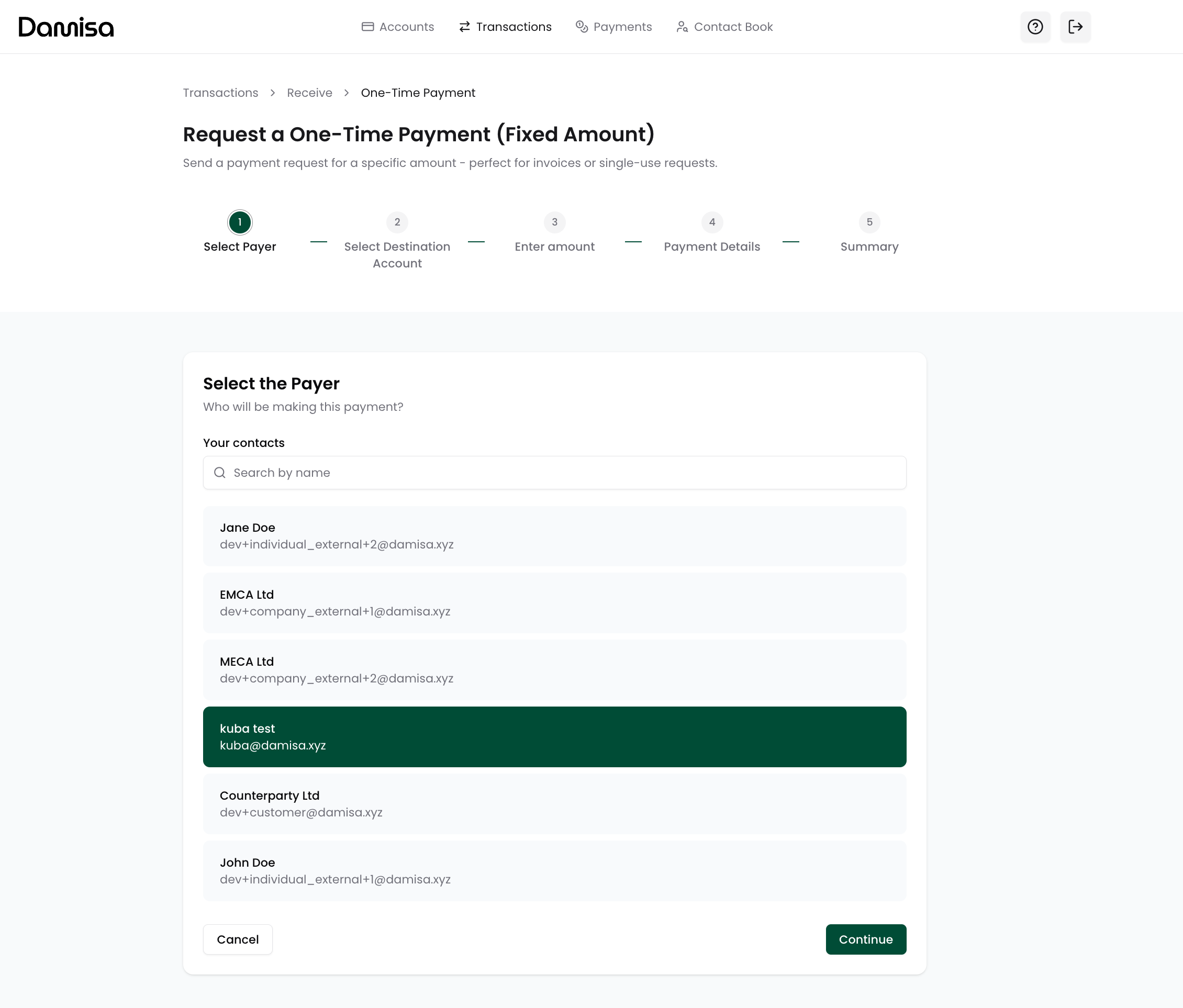
Once you start the Receive Flow (Payment Request creation), the first step is to select who will be making the payment.
You will see a list of all verified contacts in your Contact Book. Each payment request must be linked to a specific payer to ensure clear reconciliation and compliance.
Search or scroll to find the correct contact.
Only verified contacts with completed KYC/KYB can be selected.
If you need to collect funds from a new payer, add and verify them in the Contact Book before proceeding.
This ensures the Payment Request you create is tied to a single payer, enabling Damisa to automatically track, match, and reconcile incoming payments and meet all the regulations.
Choosing the Destination Account
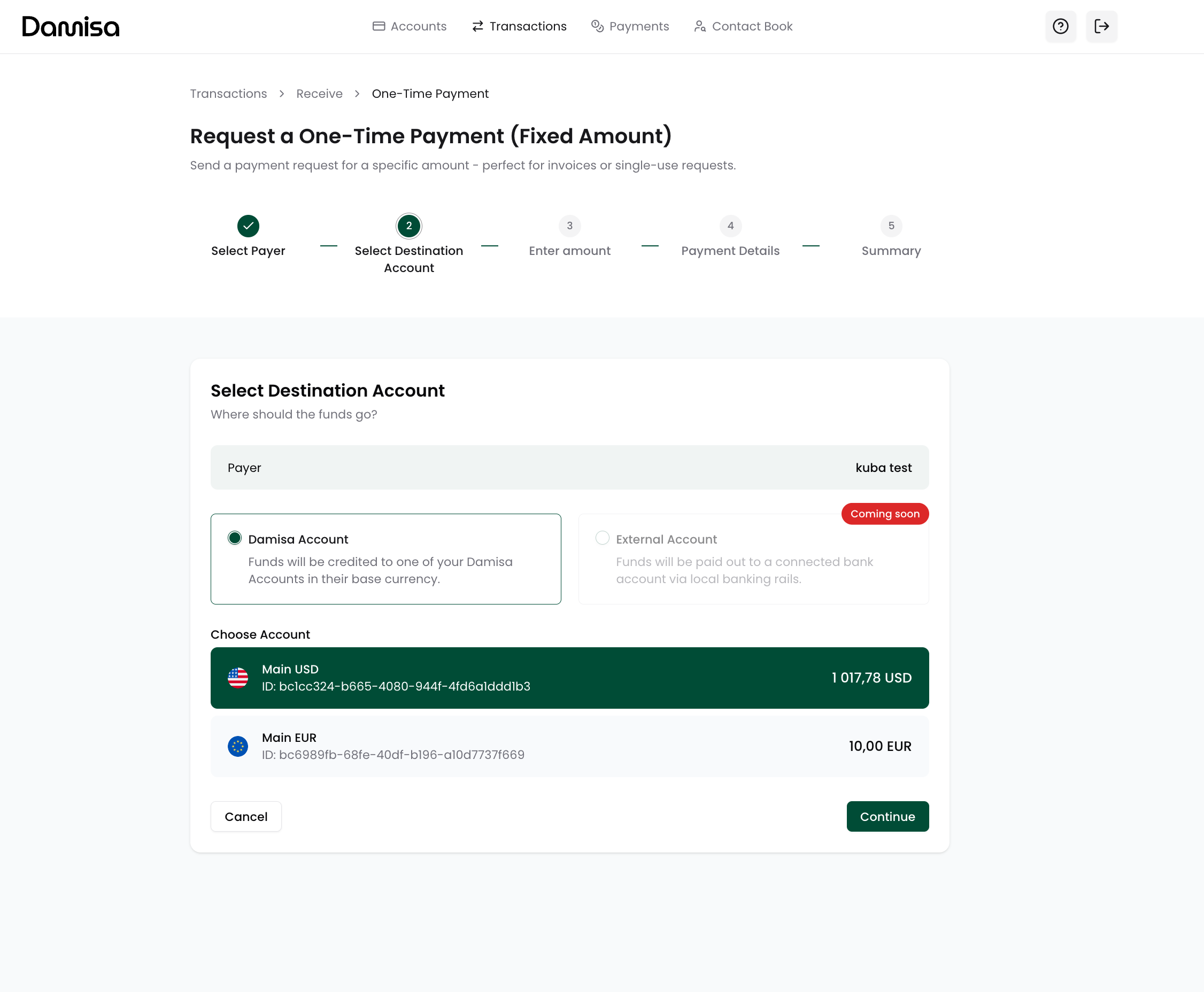
In this step, you select where you want the funds to arrive once your payer completes the payment request.
Currently, Damisa supports receiving payments directly into one of your Damisa Accounts, where funds are credited in the account’s base currency (e.g., USD, EUR). From there, you can manage your treasury and settle funds to your external accounts when needed.
We are actively working to combine payment collection and settlement flows.
In case you do not wish to hold the money at Damisa, soon you will be able to collect payments from payers and have them routed directly to your desired external account using Damisa’s infrastructure, while maintaining full compliance, traceability, and optimized FX along the way.
For now, simply select which of your Damisa Accounts should receive the payment before proceeding to the next step.
Defining the Expected Amount
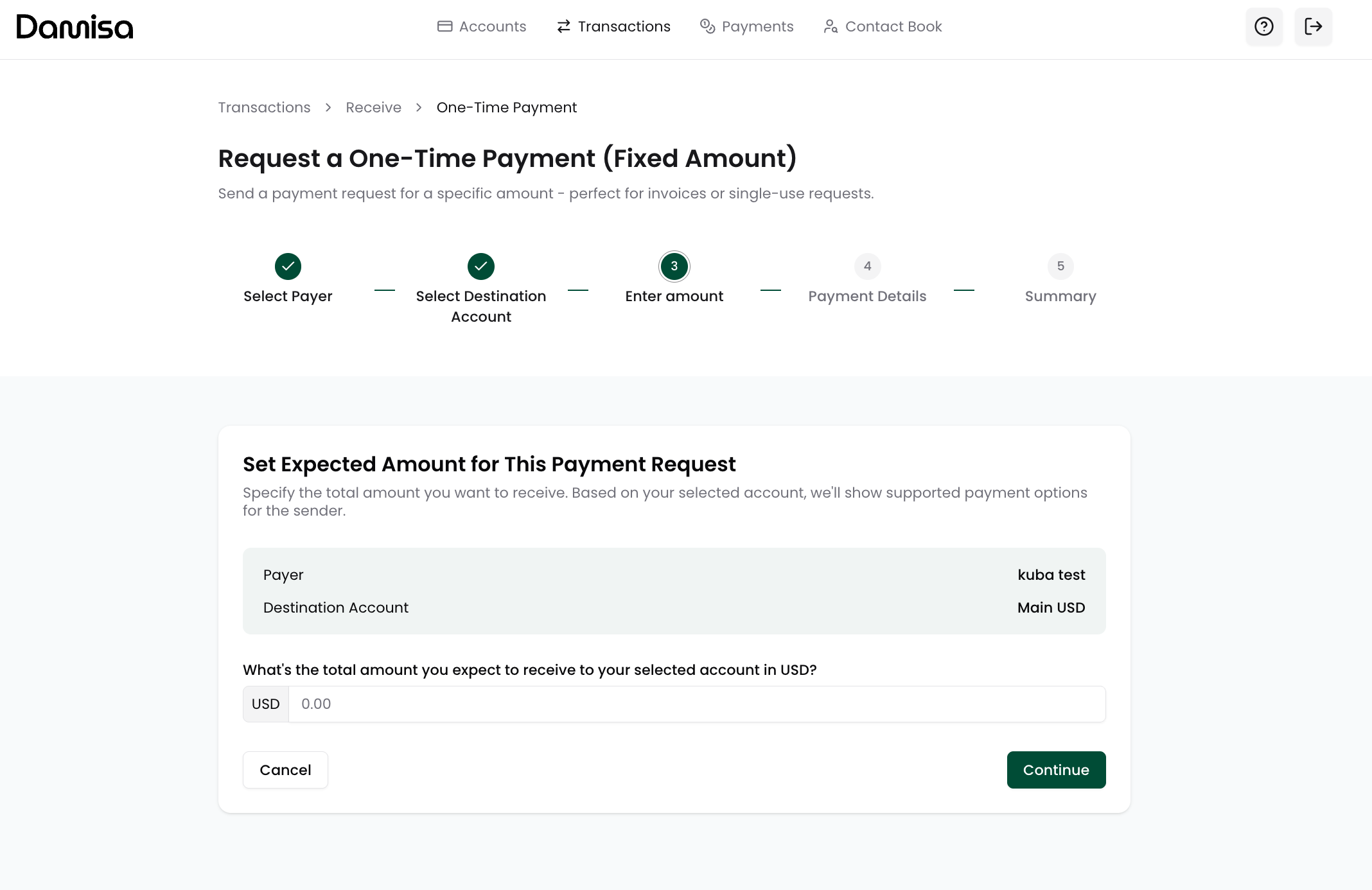
In this step, you specify the total amount you expect to receive from the payer for this payment request.
The amount will be denominated in the base currency of the destination Damisa Account you selected in the previous step (e.g., USD or EUR).
This ensures you receive exactly the specified amount in your Damisa Account, regardless of how the payer decides to pay (e.g., crypto, local rails, different currencies).
Once the payer completes the payment, Damisa will handle:
Conversion of funds (FX, crypto to fiat),
Compliance checks,
Reconciliation and allocation to your account, ensuring you receive the precise requested amount in the correct currency.
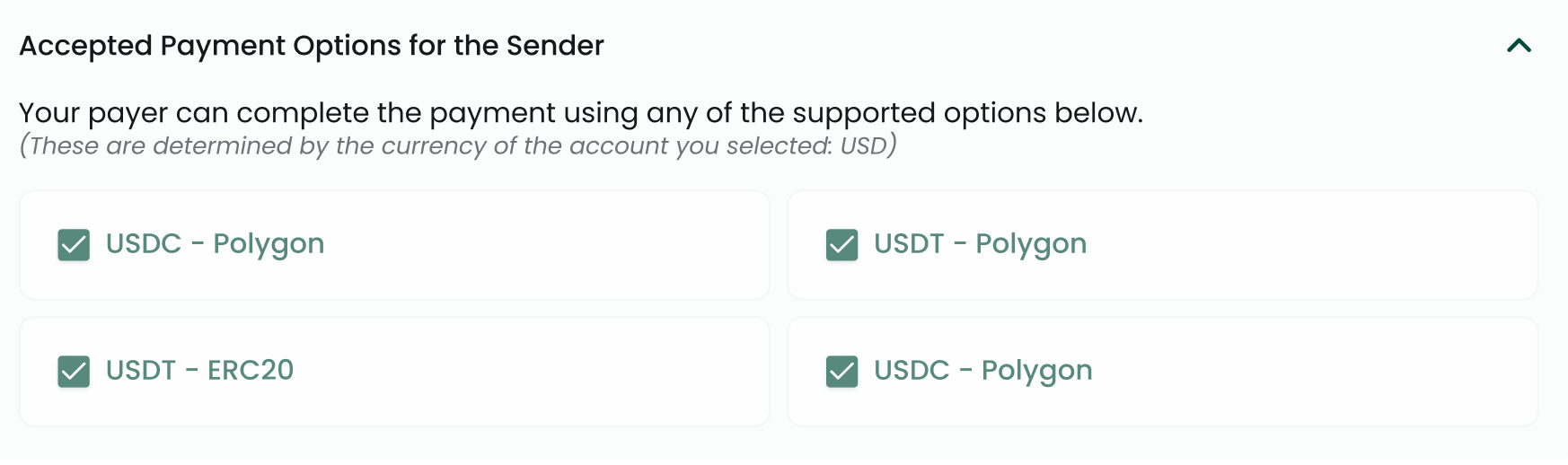
Additionally, depending on your configuration, the above screen may display which payment methods and assets will be available to your payer after the Payment Request is created.
Currently, the list of payment methods (e.g.: supported assets, networks, fiat rails) is determined by your agreement model and the configuration of the markets in which you operate.
If you would like to enable additional payment methods, assets, or regions for your payers, please contact your Account Manager to discuss enablement.
Providing Additional Details
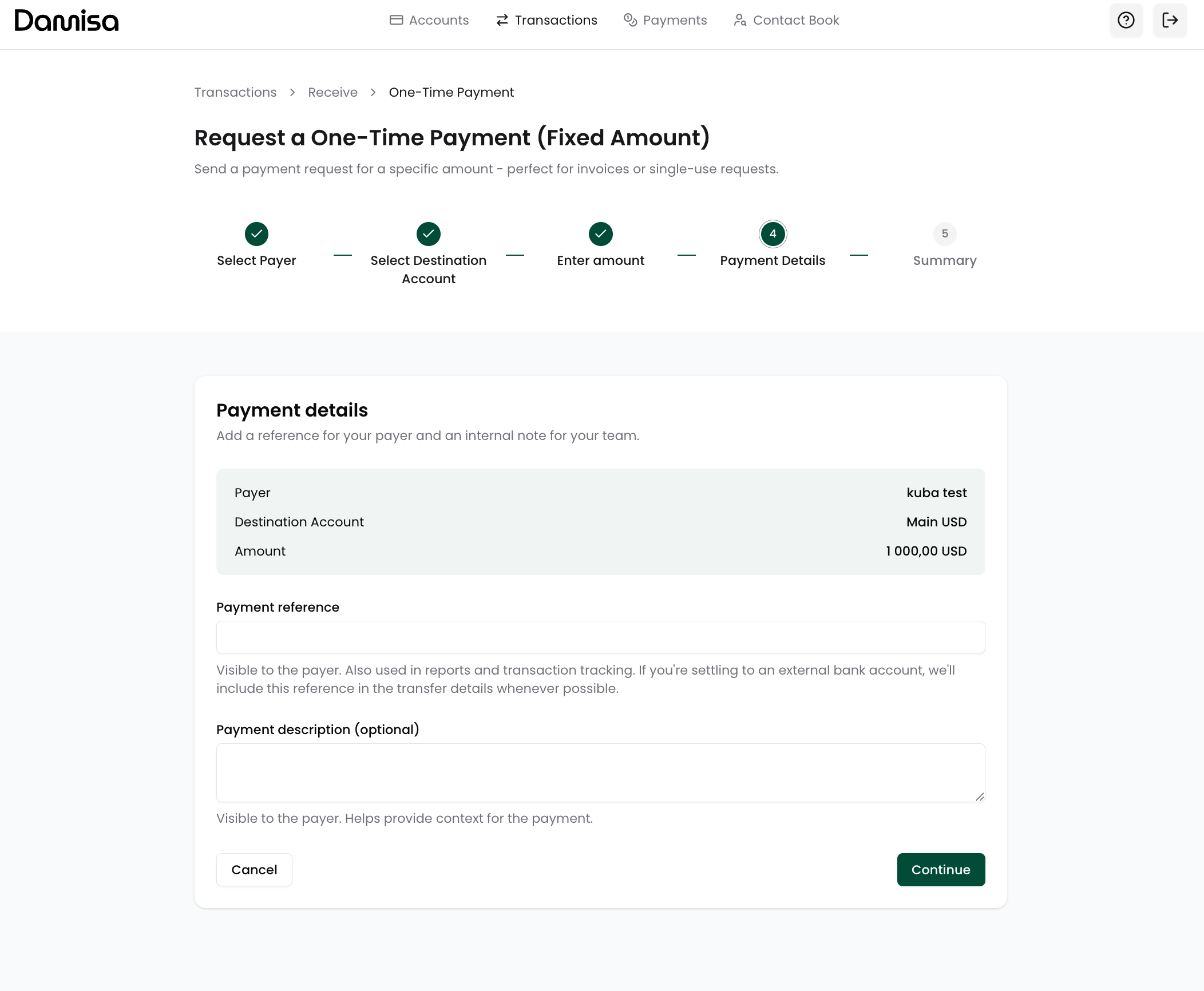
Before confirming creation of your payment request, you will be asked to provide:
Payment Reference (mandatory) - a reference visible to the payer on the Hosted Payment Page and included in your reports and transaction tracking. Damisa will attempt to pass this reference wherever possible, including in downstream settlements (e.g., if the payer sends USDC and Damisa settles to your EUR account, we will try to include the reference in the bank transfer details).
Most local bank transfers honor this reference (though not guaranteed). Crypto networks typically do not display this reference to the payer.
Payment Description (optional) - additional note visible to the payer on the Hosted Payment Page, helping them understand the context of the payment (e.g., “Invoice #4567 – May Subscription”). This note will also appear in your Damisa Portal for your operational tracking.
Reviewing & Confirming
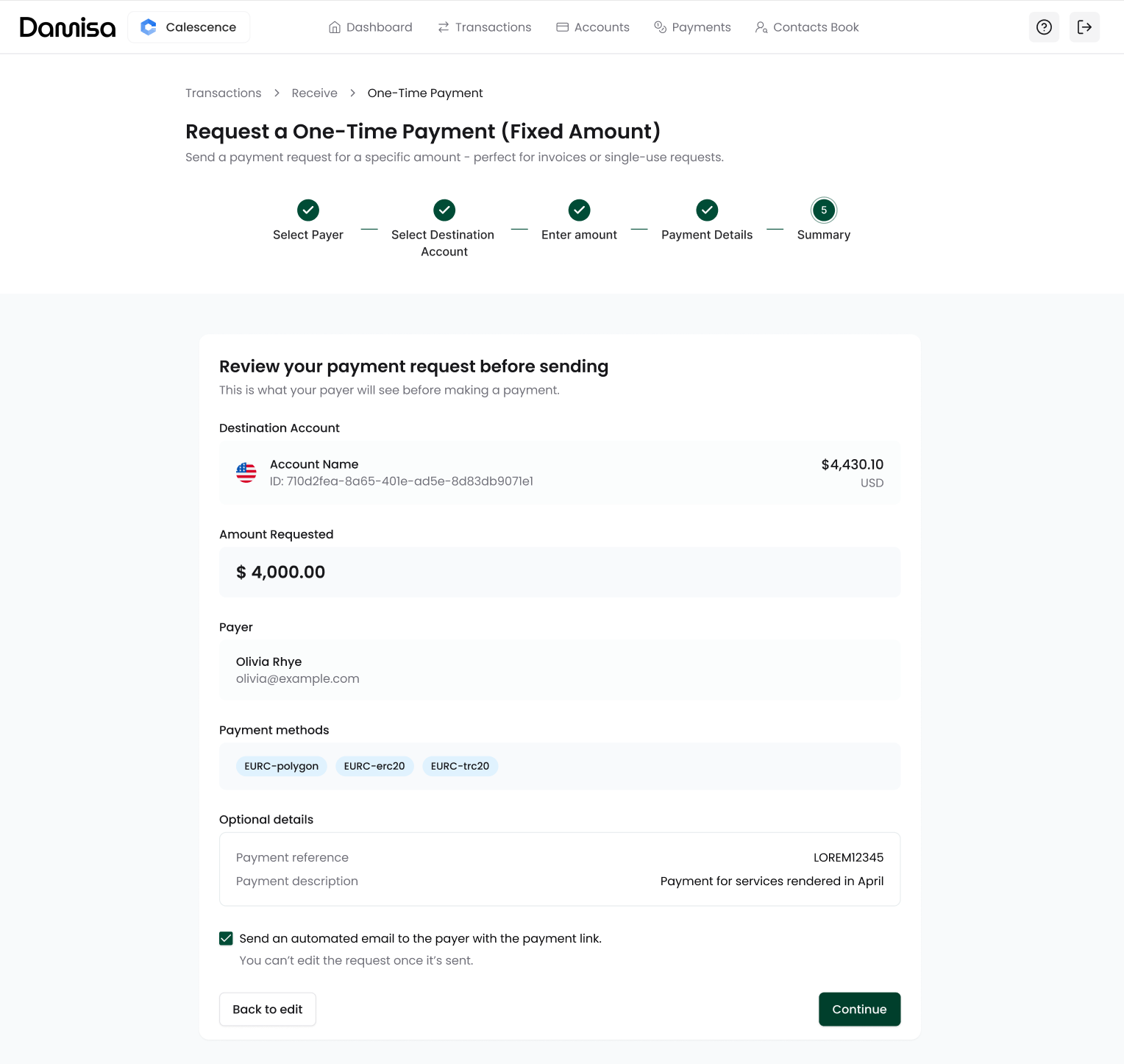
This is the final step before sending your payment request. Here, you can review all details that your payer will see on the Hosted Payment Page:
Destination Account: Shows where funds will be credited (your Damisa Account and its currency).
Amount Requested: The exact amount you expect to receive.
Payer Details: The payer’s name and email.
Payment Methods: The available payment rails and assets the payer can use to fulfill the request.
Payment Reference: Included wherever possible in the settlement chain (e.g., if payer sends USDC and Damisa converts to EUR, reference may appear on the bank statement).
Payment Description: Additional context for the payer, displayed on the Hosted Payment Page.
Sending the Payment Request
By default, Damisa will send an automated email to the payer with the payment link as soon as you confirm.
Once you click Continue:
The payment request is generated.
It becomes immutable (you cannot edit it after sending).
The payer can immediately proceed to complete the payment using their preferred asset or network.
The request will appear in your Payment Requests tab for tracking.
Congratulations! The Payment Request has been generated.
For a detailed walkthrough of what your payer will see when using the payment link, refer to the Step-by-Step Guide, which explains the Hosted Payment Page (HPP) journey step-by-step.
Payment Request Details
The screen gives you full visibility into a specific payment request created by your organization. It includes all relevant information - from basic request data to real-time payment progress and unique payment instructions created for this specific payment request object.
On the overview, you’ll find:
Request ID and status of the Payment Request,
Payment Link - including a QR code and copyable link for sharing with the Payer that would redirect to Hosted Payment Page where Payer will be guided on how to pay,
Expected Amount along with received amount - how much has been successfully received so far, displayed in the destination account’s base currency,
Destination Damisa Account - the account that will ultimately receive the funds,
Creation date, payment reference, and payer details.

Incoming Funds
The section displays all detected payments linked to this request, both pending and completed.
Each entry includes:
Unique Transaction ID,
Amount received, shown in destination currency (e.g. USD, EUR),
Time and date of when transaction was received,
Status.
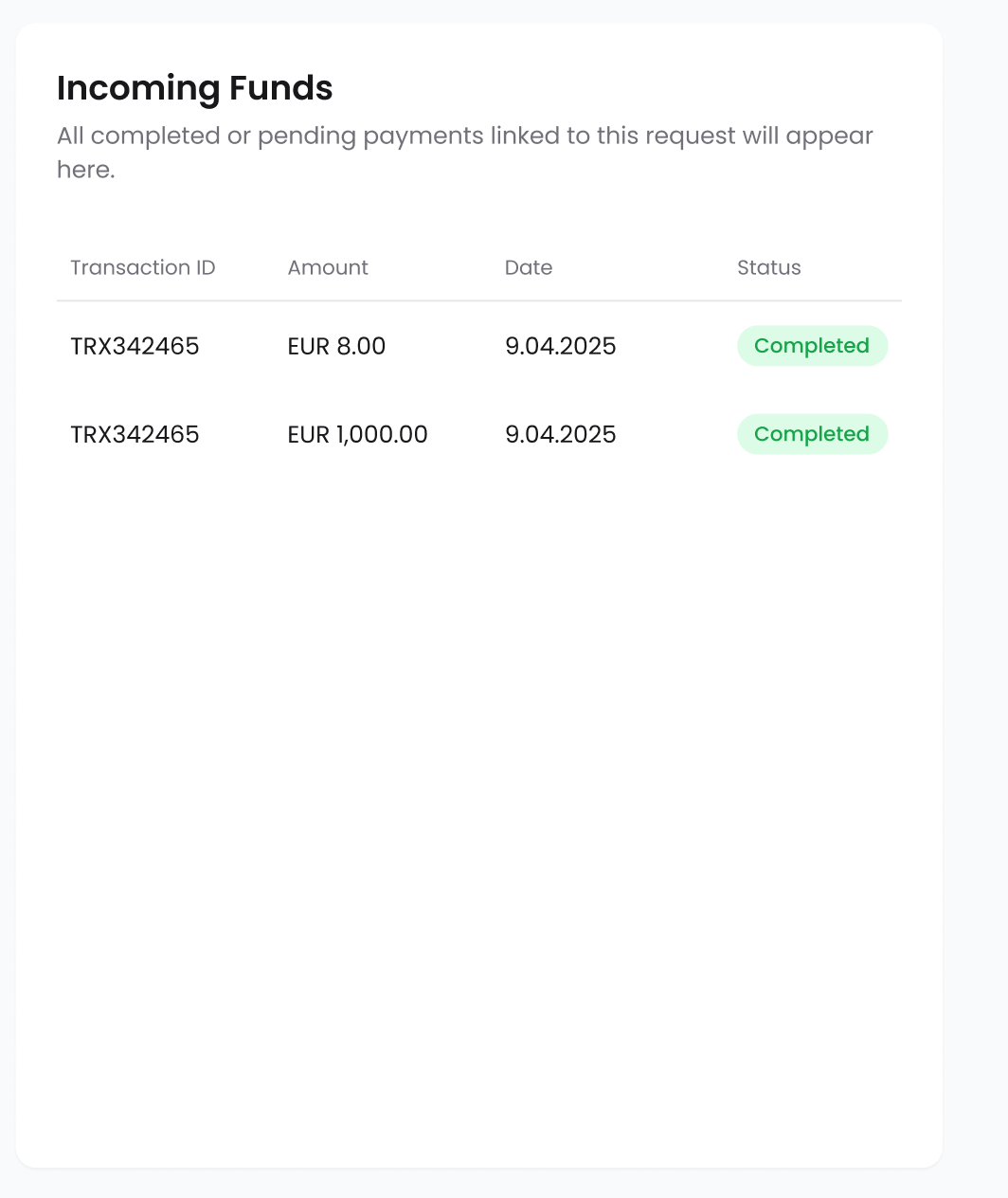
The amounts shown in this section are final, based on conversion to the base currency of the Damisa Account.
The payer may send crypto (e.g. USDC), but you’ll only see the confirmed total after conversion received in your payment request's currency (e.g. EUR).
Statuses:
Verifying - The funds have been sent by the payer and detected on-chain, but there is no guarantee they will be credited to your account until Damisa completes all required compliance checks, including Travel Rule, AML, and KYT screening:
The transaction is not yet visible in the Transaction History,
Most transactions are cleared quickly, but if a flag is triggered, the transaction will remain in Pending until it is manually reviewed and approved.
Accepted - The payment has passed all checks and is confirmed:
The transaction now appears in the Transaction History with a status of Processing,
Damisa initiates the internal transfer of funds from the payment request’s unique receiving account into your Destination Damisa Account,
Once the transfer is completed, the transaction status on Transaction History will be updated and your account balance will reflect the received funds.
Available Payment Options
At the bottom of the screen, you’ll see a list of wallet addresses and supported assets that can be used to fulfill the payment request. These are grouped by blockchain (e.g. Ethereum ERC-20) and include:
A unique wallet address
Supported assets for the requested currency
A Copy button for each entry, plus a Copy all option to share everything at once
All shown payment instructions (wallets/accounts) are dynamically generated per payment request, ensuring Damisa can always reconcile and match incoming funds precisely to that specific request.
By default, we recommend not sharing these payment instructions directly with the payer. Instead, always use the Hosted Payment Page (HPP) link, which guides the payer through:
Selecting their preferred payment method,
Viewing the exact amount to send, dynamically calculated by Damisa based on your payment request’s expected currency, remaining amount, FX rates, and any applicable fees,
Receiving the correct wallet address, chosen automatically based on Damisa’s internal logic.
👉 Refer to Step-by-Step Guide to get to know more.

This section is useful in specific scenarios where your organization:
Has pre-agreed payment instructions with a counterparty (e.g. as part of a contract),
Needs to share wallet details outside of the standard Hosted Payment Page flow.
Each payment request is created specifically for a single payer. The payment instructions (wallet addresses) are unique to that request and contact.
If you need to receive funds from a different payer, always create a separate payment request. Using the same request for another party may result in funds being delayed or held for compliance review if the sender’s details do not match the original verified contact.
Last updated